Overview
If your SSD isn’t appearing on your device, it may need formatting, proper seating, or driver recognition. This guide helps you locate and prepare your SSD.
What You Need
- Your SSD
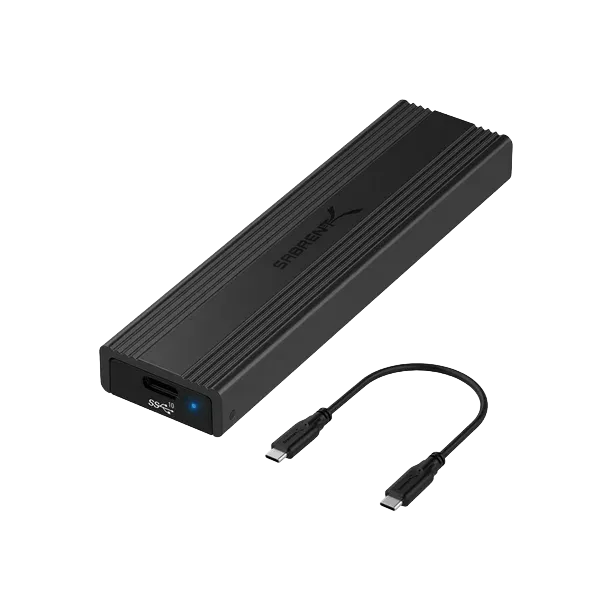
- Sabrent enclosure/docking station (if applicable)
- Windows or macOS device
Step-by-Step Instructions
1. Check Physical Connection
- Ensure the SSD is firmly seated in the M.2 or 2.5” slot.
- Confirm the enclosure or adapter is fully plugged in.
2. Open Disk Management (Windows)
- Right-click Start → Disk Management.
- Look for an Unallocated disk.
- If found, right-click and choose New Simple Volume.
3. Use Disk Utility (macOS)
- Open Disk Utility.
- Look under View → Show All Devices.
- Erase and format if needed.
4. Confirm Compatibility
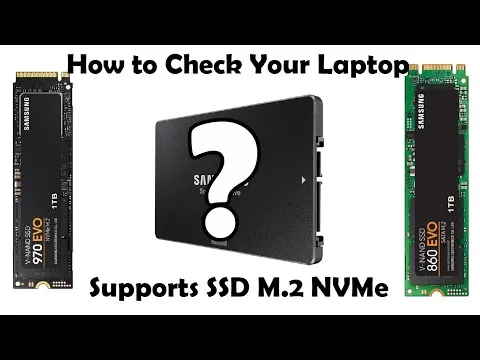
NVMe SSDs require NVMe-compatible slots; SATA SSDs require SATA support.
Troubleshooting Notes
- Some enclosures support only NVMe or only SATA—mixed drives won’t appear.
- macOS may hide unformatted drives until manually shown.
Extra Tips
- Always initialize new SSDs before use.
- Try another USB port to confirm host power.