Overview
Dual-monitor KVM setups require correct cabling and compatible resolutions. This guide helps solve display detection issues.
What You Need
- Your Sabrent KVM switch
- Two monitors
- Two sets of HDMI/DisplayPort cables
Step-by-Step Instructions
- Check Cabling Setup
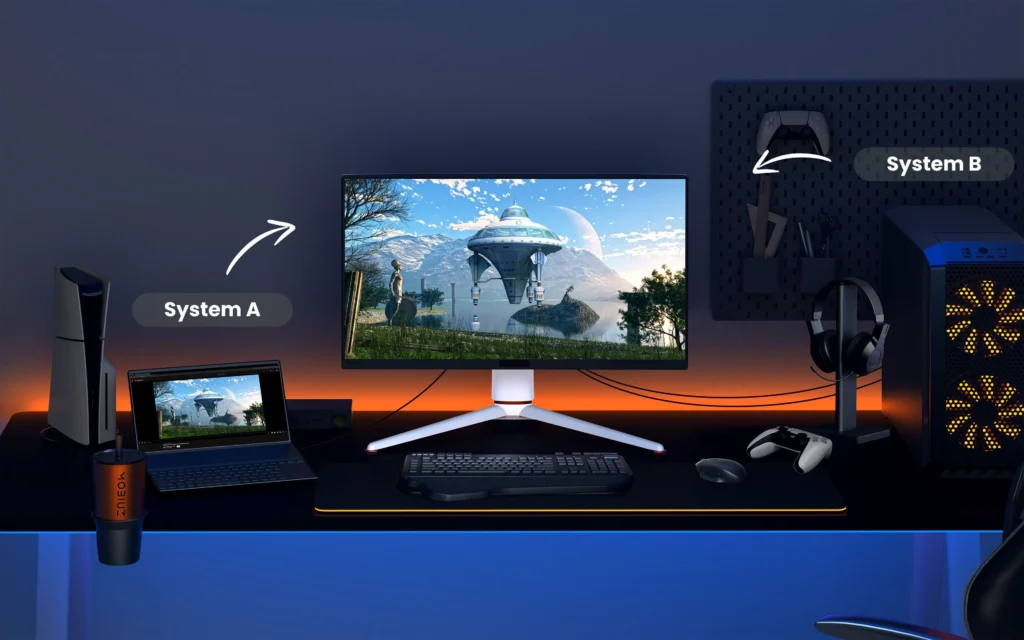
- Each monitor must have two connections:
one to PC A and one to PC B, each going into the KVM.
- Verify Input Source
Make sure the monitor is set to the correct input (HDMI 1, HDMI 2, DP, etc.).
- Confirm Resolution Support
Ensure both monitors and both systems support the same resolution/refresh rate.
- Power Cycle the KVM
Disconnect power for 10 seconds, reconnect, then test again.
Troubleshooting Notes
- macOS may default to mirrored mode — enable extended mode in Display Settings.
- Loose cables are the #1 cause of this issue.
Extra Tips
- Use high-quality certified HDMI/DP cables for best stability.
- Update your GPU drivers to improve multi-display detection.