Overview
External drives may disconnect when your computer enters sleep mode. This guide explains why it happens and how to prevent unexpected disconnections.
What You Need
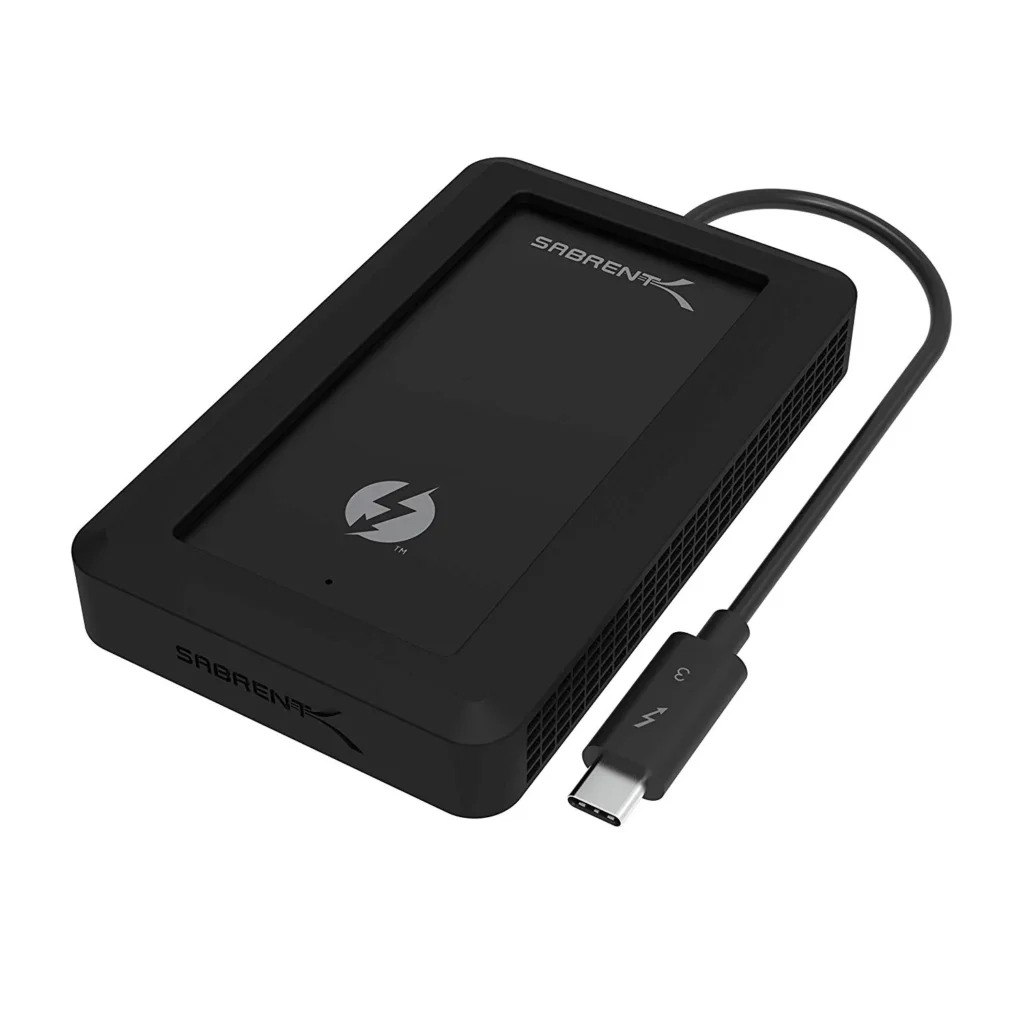
- Your Sabrent drive/enclosure
- Access to macOS or Windows power settings
Step-by-Step Instructions
1. Adjust USB Power Settings (Windows)
- Go to Control Panel → Power Options → Change plan settings.
- Select Change advanced power settings.
- Expand USB Settings → USB selective suspend.
- Set it to Disabled.
2. Prevent Drive Sleep (macOS)
- Go to System Settings → Displays → Advanced.
- Disable Put hard disks to sleep when possible.
3. Use a Powered Hub or Direct Port
Plug the drive directly into your laptop/PC or use a powered USB hub to ensure stable voltage.
4. Update Firmware & Drivers
Some firmware releases improve USB stability—check your device’s page on the Sabrent website.
Troubleshooting Notes
- Laptop lid closing can force sleep even if settings are disabled.
- Low-quality cables can cause intermittent power loss.
- USB-C ports may behave differently depending on system power mode.
Extra Tips
- For continuous backup tasks, keep your computer in “Never Sleep” mode.
- Always safely eject if disconnecting manually.