Overview
Properly connecting and safely removing your external drive prevents data loss and ensures consistent performance. Follow these steps for the best experience with your Sabrent drive or enclosure.
Connecting Your Drive
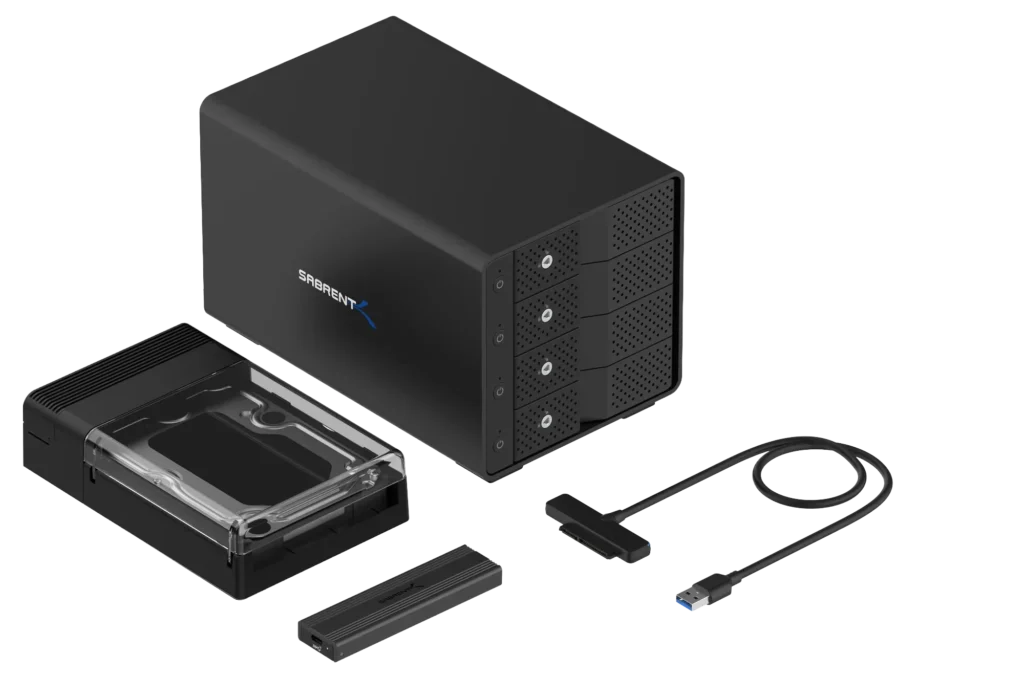
1. Install the Drive (If Using an Enclosure)
If your product requires installation:
- Insert the SSD into the M.2 or SATA slot
- Secure the drive
- Close the enclosure properly
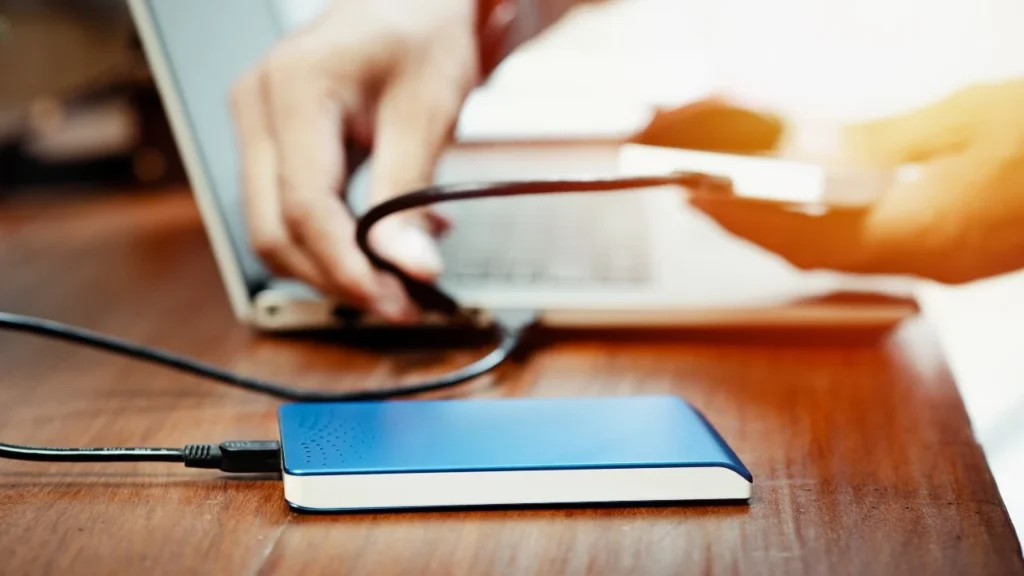
2. Connect the USB Cable
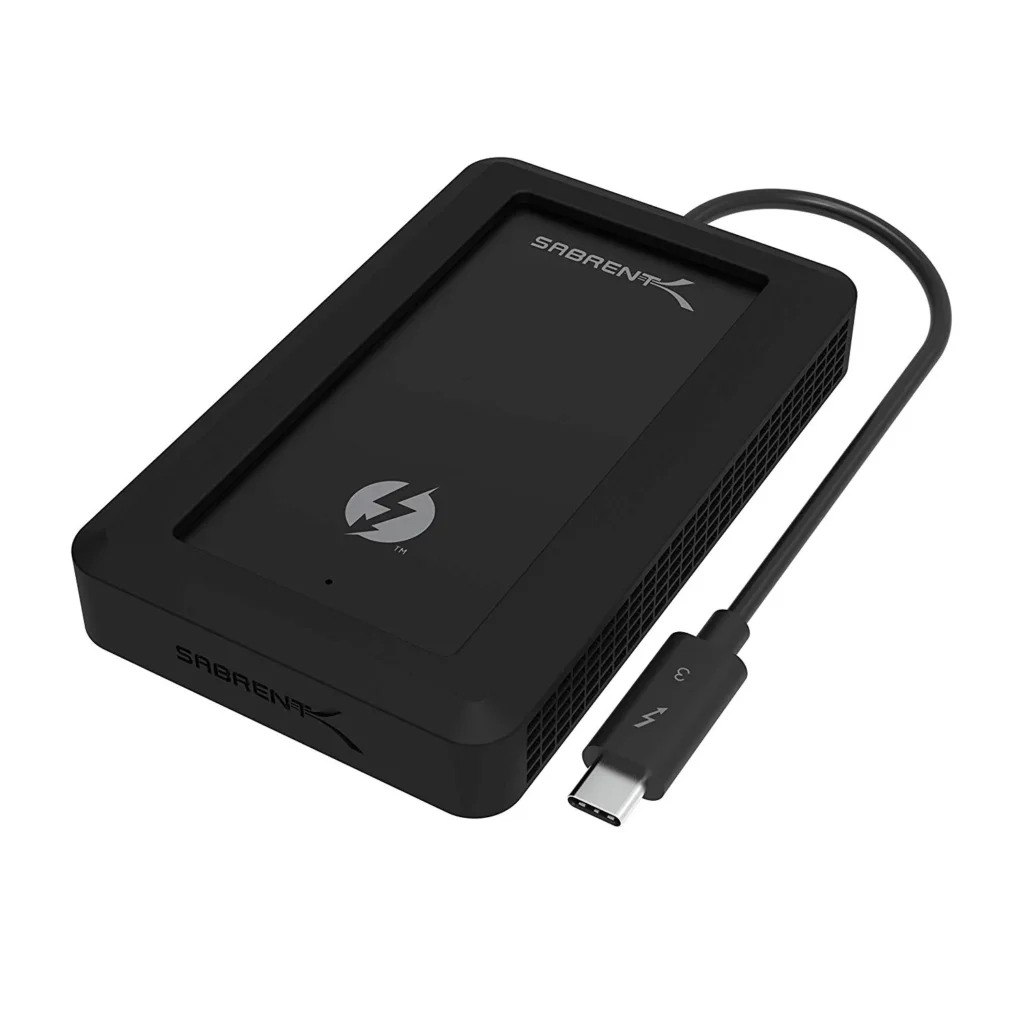
Use the included USB cable (USB-A or USB-C depending on your model). Avoid using hubs or extension cables during initial setup.
3. Allow the Drive to Mount
Your system should detect the drive automatically.
- Windows: opens in File Explorer
- macOS: appears on Desktop or Finder
4. Format the Drive if Needed
Brand-new drives may need formatting before first use.
Disconnecting Your Drive Safely
1. Close All Files and Programs
Ensure no applications are reading or writing to the drive.
2. Eject the Drive from Your System
- Windows: Click Safely Remove Hardware → select your device
- macOS: Right-click the drive → Eject
3. Wait for the Drive to Unmount
The drive icon should disappear from your system.
4. Physically Disconnect the Cable
Once ejected, remove the USB cable from your computer or hub.
Important
Disconnecting a drive during data transfer can cause corruption or permanent data loss.
Troubleshooting
If the drive will not eject:
- Close all background applications
- Restart your computer and try again